
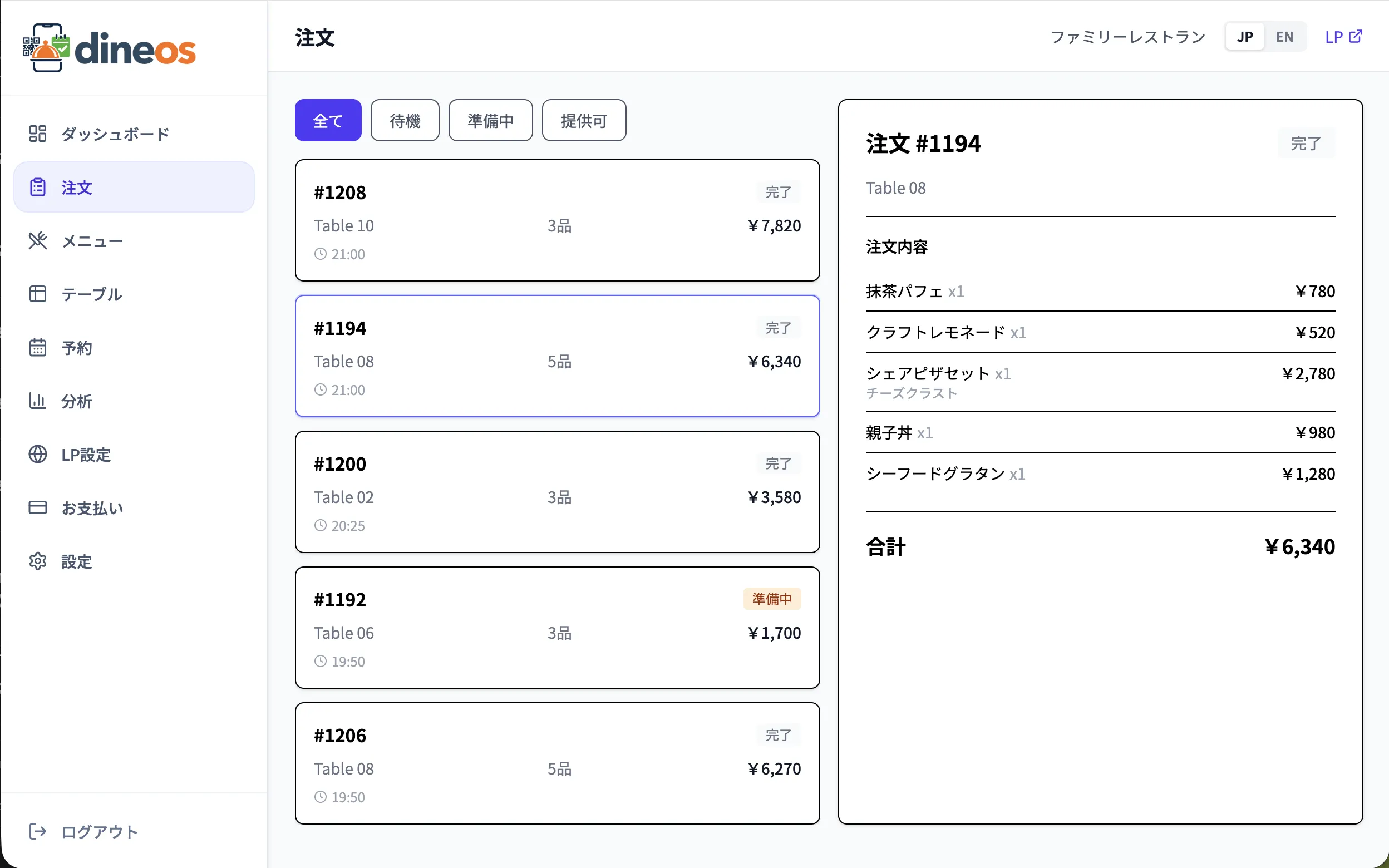
"I want to try QR menu ordering, but setup looks like a lot of work." Many restaurant owners feel that way. With Dineos, a simple setup can be prepared by moving through tables, menu items, and QR codes in order.
1. Create an account (about 2 minutes)
Sign up with your email and restaurant name. No credit card required — pick Lite, Standard, or Pro, and the 3-month ¥0 trial activates automatically.
2. Add tables (about 2 minutes)
In the "Tables" screen, enter your table count. Names can be anything — "1, 2, A1, Counter 1". Each table gets a unique QR code automatically.
3. Register menu items (about 4 minutes)
Create categories and add photos, prices, and descriptions for each dish. Add options like sizes or spice levels if needed. Entering English descriptions makes the menu friendly for international guests.
4. Print the QR codes (about 2 minutes)
Click "Download all QR codes (PDF)" to get a single PDF with all your table-numbered QR codes. Print it on plain paper, place it on the tables, and you're live.
Best practices
- Write "メニュー / Menu" above the QR code so foreign visitors recognise it.
- Scan one QR with your phone before service to confirm the ordering screen renders correctly.
- If a QR code is placed on the wrong table, orders will arrive under the wrong table number. Double-check at setup.
For ongoing operations, see our follow-up "5 KPIs every restaurant should track monthly".